


Important] Temporary Storage of Application Information (Please check before registration)
Please note that you will not be able to correct the registered applicant information (name, date of birth, address, etc.) if you proceed to the “Payment Procedures” screen when registering application information, even if you have not paid the application fee. (Please refer to “3. Correction of Activity Records, etc.” for details on correcting activity records, etc.)
By reflecting applicant information on the College Admission Support Site ( https://portal.postanet.jp/shikoku/ ) at the time of initial registration, you can avoid the time and effort of entering applicant information when you re-register.
In addition, if there is an entry step for activity records, etc. (activity report, statement of purpose, statement, etc.), “temporarily save” the activity records, etc. so that the contents will be reflected when re-registering.
1. storage of applicant information
Applicant information can be saved by reflecting the information on the “College Prep Support Site,” and the information can be recalled the next time the applicant registers.
| Information that can be stored on the “College Prep Support Site |
| Applicant information (name, kana, gender, date of birth) Applicant contact information (zip code, address, phone number) |
Information on the high school from which the applicant graduated (name of high school, year and month of graduation, course of study, department), emergency contact information (contact information for parents, etc.), and
Photo data will not be saved in the College Prep Support Site. You will need to re-enter the data the next time you register.
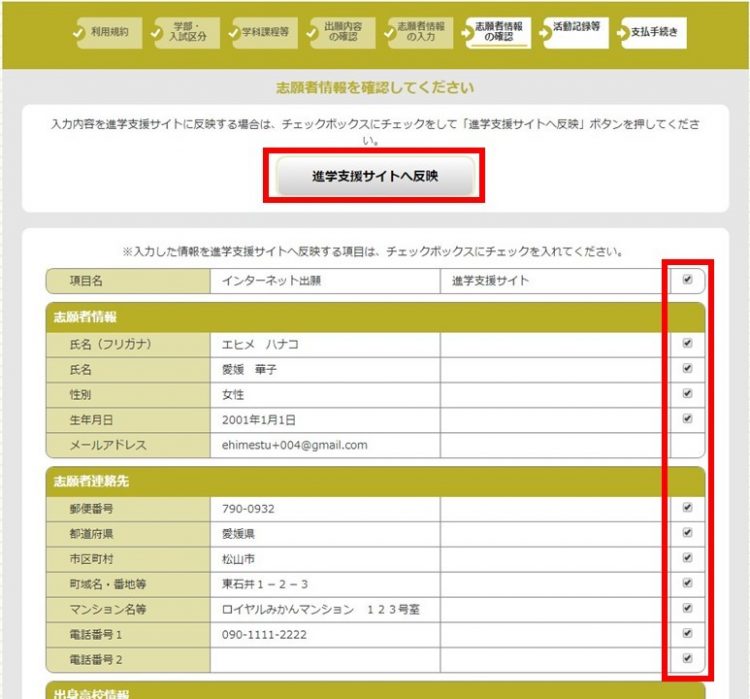
Please select the items to be reflected on the “Confirmation of Applicant Information” screen that appears after entering the applicant information, and press the “Reflect on the College Admission Support Site” button.
(Image of the “Confirm applicant information” screen)
2. preservation of activity records, etc.
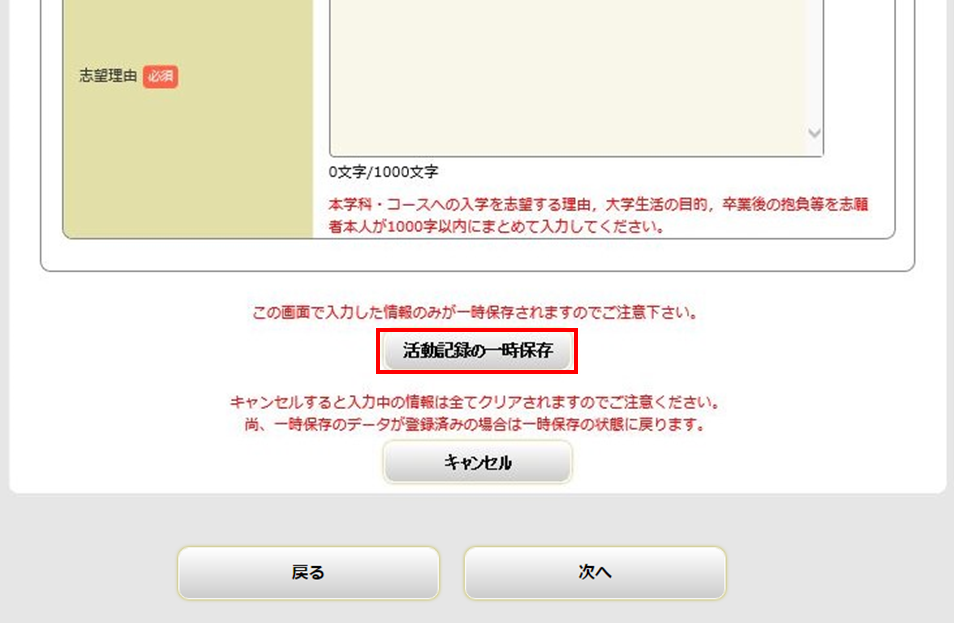
The registered activity records, etc. (activity report, statement of purpose, statement, etc.) will be saved by clicking the “Temporary Save” button at the bottom of the input screen, and the information will be automatically displayed the next time you register.
You can temporarily save your entry even if you are in the middle of entering it.
(Image of the “Activity Record” input screen)
Revision of activity records, etc.
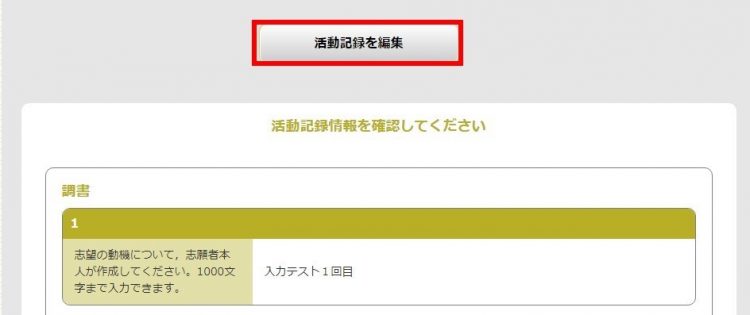
The contents of the activity record, etc. (statement of reasons for application, activity report, statement, etc.) can be revised even after proceeding to the “Payment Procedures” screen, as long as it is before the payment of the examination fee is completed.
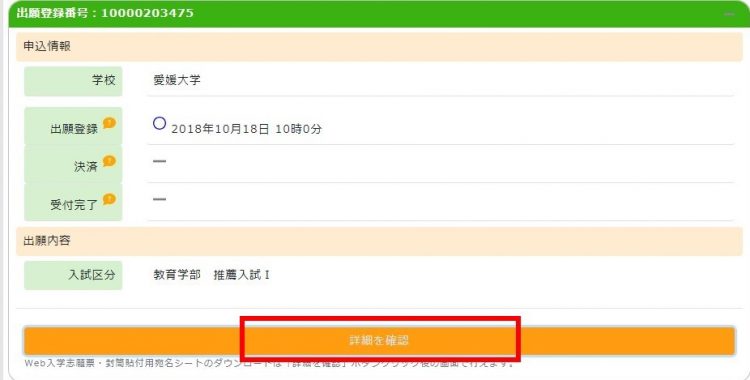
(1) Log in again and proceed from “Check Details”, (2) select “Inquire Activity Record”, and then (3) select “Edit Activity Record” to access the modification screen.
(Screen image ①)
(Screen image (2))
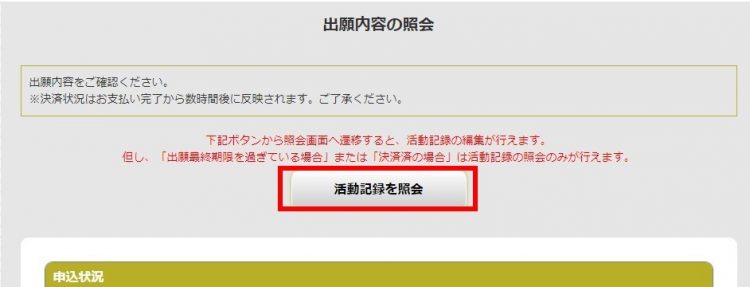
(Screen image (3))