



Internet Application Q&A
Internet Application Q&A
General information about the application
Internet applications can be submitted from a computer, smartphone, or tablet. The recommended environment for use is as follows
Recommended environment
▼ Browser Version
Windows] Internet Explorer 11.x, Microsoft Edge (latest version), and
Google Chrome (latest version), Firefox (latest version)
Mac] Safari (latest version)
Smartphones and tablets: Android 5.0 or higher (latest version of Chrome for Android)
iOS 10.0 or later (latest version of Safari)
▼Browser Settings
Enable JavaScript.
Enable cookies.
▼Other software requirements
Adobe Reader 11.0 or higher is recommended for viewing the Internet Application Form and other documents in PDF format.
[Attention.
Please note that Internet applications may not operate properly if security software is installed. For information on security software, please contact the support center of each manufacturer.
When using smartphones and tablets, some models may not be compatible.
If you do not have a printer at home, please check with your school or a convenience store to see if you can print the form.
The timing of online application differs depending on the entrance examination categories (Comprehensive Selection, School Recommendation Selection, and General Selection). Please check the application guideline for each category. You can enter your application information from the start date of registration, but payment of the application fee and printing of the application documents will be available only after the payment period for the application fee has started. Please note that your application will not be accepted if the application documents have not been mailed by the due date, even if you have completed the online application.
Please note that if you log in to the Internet application with the same user ID as that of the College Preparation Support Site, you can use the information you have recorded for your application.
The “College Entrance Support Site” is a website provided by the five Shikoku National Universities, including TUAT, to help students organize their high school records. (Use of the site is optional.) You can register and use the site at any time, regardless of the application period.
About login and e-mail
Usually arrives within 30 minutes.If you do not receive the e-mail after 30 minutes, please check the following
Make sure you have the correct email address.
Are you sure you have not set your phone to reject incoming messages?
Please set up your e-mail address so that you can receive e-mails from “@postanet.jp” and register your e-mail address again.
Please refer to the websites of each cell phone company for information on how to cancel the reception rejection settings of your cell phone.
docomo
au
SoftBank (Japanese telecommunications company)
Y!mobile
If you are unable to access the site, please search for “carrier name + spam filtering” or similar.
Is the mail delivered to a folder other than the inbox of your mail software?
The mail may be stored in a different folder due to a filter (automatic sorting function) set in the mail software.
Without user registration, you will not be able to complete the online application process. If you still cannot receive e-mails after performing these operations, please contact the Application Operation Support Desk (Call Center).
The contact information for the Application Operation Support Desk (Call Center) is
About Inquiries
for more information.
Please confirm the following
Please check your user ID or password carefully to make sure it is entered correctly. Lowercase and uppercase letters must also be distinguished.
If you have forgotten your password, please click “Forgot Password” on the login screen to reset your password.
Are you logging in with the “User ID (e-mail address)” that you registered? The “User ID (e-mail address)” is the e-mail address that the applicant provided when registering his/her application.
It may be different from the e-mail address you entered on the information entry screen.
You can apply for different entrance examination categories (Comprehensive Selection, School Recommendation Selection, and General Selection) with your registered user ID.
Registration and operating instructions
For example, use characters that can be typed on a computer, such as “高 (高)” for “高 (はしごだか)”. If it is still difficult to type, please use katakana.
You are required to take all the subjects designated by the faculty or department you wish to apply to, and to select all of them (i.e., report them as already taken) when you submit your application online. You do not need to select subjects and courses other than those designated by the faculty or department you wish to enter. It is also acceptable to select all the subjects you have taken.
Uploaded photos must be JPEG file format (file extension: jpg or jpeg) with a file size of 3 MB or less.
When uploading an image file, you can rotate the image, scale it up or down, and crop it to a size of 4 (height) ︓ 3 (width).
Please refer to “How to use Ehime University Internet Application [Basics] (video)” for the operating procedure.
Information up to the point before the selection of the payment method will not be saved during the process. Please re-enter the information from the beginning. However, the applicant information (name, date of birth, address, etc.) can be reflected by recalling the data saved on the College Preparation Support Site.
In addition, if activity records, etc. (statement of purpose, activity report, etc.) are “temporarily saved” on the registration screen, the data will automatically appear when you register again.
If the error occurs repeatedly, please contact the “Application Operation Support Desk (Call Center)”. For contact information for the Application Operation Support Desk (Call Center), please contact
About inquiries
for more information.
The “College Entrance Support Site” is a website provided by the five Shikoku National Universities, including TUAT, to help students organize their high school records. (Use of the site is optional.) You can register and use the site at any time, regardless of the application period.
The entered applicant information can be modified on the screen until you proceed to the “Payment Procedure”.Be sure to check the Applicant Information Confirmation screen for any errors.
If, after proceeding to the “Payment Procedures” section, you find that there is an error in your registration, please follow the steps below.
If you choose to pay by credit card, the payment of the examination fee will be completed immediately at the time of payment procedure, so please refer to the after payment of the examination fee.
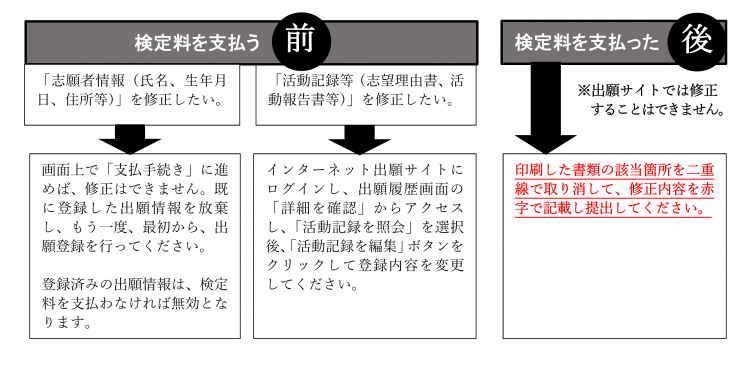
Information registered in the online application can be viewed by logging in again and clicking “View Details” from the application history.
About payment
Payment of the application fee can be made during the payment period indicated in each application guideline. Please note that payment cannot be made until after the payment period starts, even during the application period. For payment at convenience stores, you will need to go to the store to make the payment, so please register well in advance. After the payment is completed, the application documents must be sent by express or registered mail from the post office during the application submission period.
Click here forstudent application guidelines
Click here to apply online.
Payment can be made by credit card, convenience store, or Pay-easy (ATMs and Internet banking at participating financial institutions).
The applicant’s name does not have to be on the application.
Please refer here.
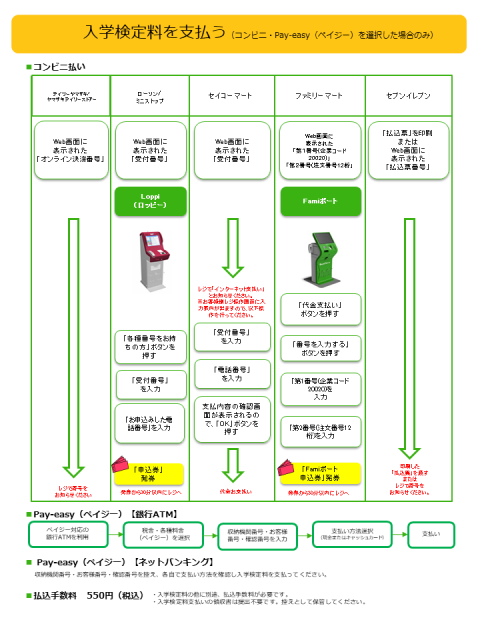
*Click on the diagram to open the PDF file.
You do not need to send it to us. Please keep it in a safe place.
About the application documents.
After payment of the application fee, it will be available for downloading. Please log in to the Internet application site, access “View Details” under “Application History,” and click the “Download Internet Application Form” and “Download Address Slip” buttons at the bottom of the “View Application Details” screen to download the application form.
Please print and paste the “Address Slip” (which will be available for downloading after payment of the examination fee) in A4 size onto a Kakugakata 2 envelope (24cm x 33.2cm).
About the examination voucher
Please check with the student application guidebook.
Please log in to the Internet application site, access “Confirm Details” under “Application History,” and click the “Download Digital Examination Voucher” button at the bottom of the “View Application Details” screen to download the application form. When printing, please print the form in A4 size, single-sided.
About the inquiry…
During the application period, a call center will be open for application operation support.
Application Operation Support Desk (Call Center) 075-211-6556
Application period During the application period
Reception hours: 9:00-17:00 (except Saturdays, Sundays, and holidays)
However, the call center will be open from 9:00 to 20:00 (including Saturdays and Sundays) only during the payment period of the examination fee and the submission period of application documents during the general selection application period.